
Cannon VoIP eFax lets you send and receive faxes from your email inbox or your browser at voip.cannonvoip.com. Everything below reflects the current eFax platform.
Sending a fax by email
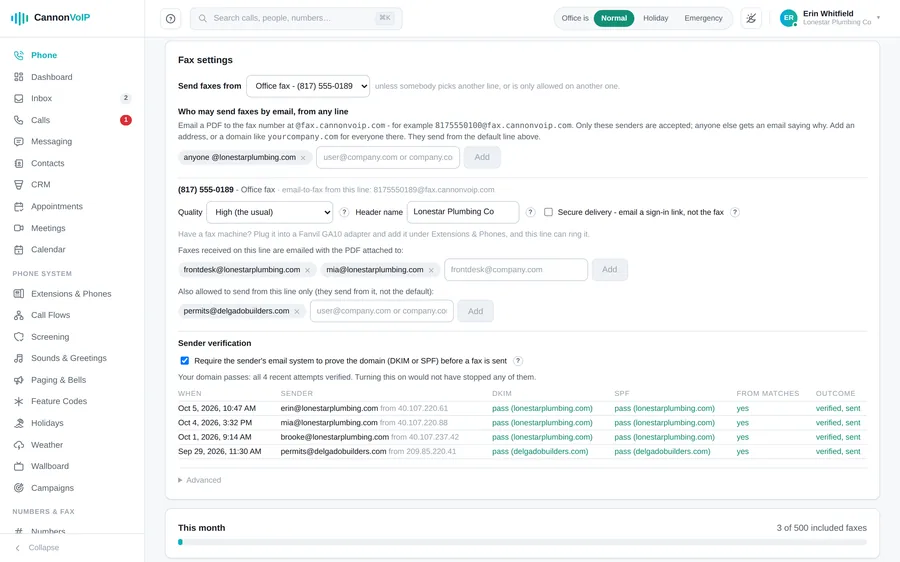
8179731575@efax.cannonvoip.com. The number format is forgiving: 817-973-1575, 1-817-973-1575, +18179731575, and 817.973.1575 all work.Who can send: only email addresses your administrator has authorized. You can allow individual addresses (jane@yourcompany.com) or your whole company domain (@yourcompany.com) in one click, so everyone at your office can fax without any per-person setup. Email signatures and inline logos are automatically filtered out, so they won't show up as extra fax pages. For extra protection, turn on the optional sender check: only mail that genuinely comes from the sender's domain is faxed. The Fax settings show the last 10 email-to-fax attempts and whether each would have been refused.
Cover pages, with your own notes
Put the word "cover" anywhere in the subject line and we'll prepend a professional cover page showing the sender, destination number, date and time, page count, and your subject line.
Anything you type in the body of the email appears on the cover page in a Notes section, perfect for "Attn: Billing, please process by Friday." Your email signature is automatically left off, so only your message makes the page. No "cover" in the subject? Only your attachments get transmitted; the body is never faxed.
Know your fax arrived, every time
You get an email at each step:
If something's wrong with your email itself, like an unsupported file, no attachment or an unauthorized sending address, the email is refused and you get a reply with the reason, so you know exactly what to fix. Nothing disappears into the void.
Receiving faxes
Faxes sent to your number arrive as PDF attachments in your email within moments. You choose who each fax line emails received faxes to, so the whole billing team can get every fax, no forwarding rules needed. Prefer not to send documents as attachments? Secure delivery emails a sign-in link instead, and the fax opens in the portal. A received fax with no readable document is tried again, then marked failed with the reason. Every received fax also lands in the same inbox as your voicemail and texts, where it opens as a PDF in one click.
The customer portal
Log in at voip.cannonvoip.com to do everything below from your browser.
Free fax test line
Not sure your fax machine works? Send any document to our free test line at (817) 973-1575 and watch it appear at voip.cannonvoip.com/test within a minute or two, with no signup and no login. Since the page is public, avoid faxing anything sensitive; faxes on the test page expire automatically after 4 hours, and you can request removal of any fax shown there.
Good to know
- Attachments: 30 MB per fax; incoming email is capped at 25 MB total (larger emails bounce at the mail level).
- Faxes go to durable cloud storage as they are created.
- Prefer a fax machine? Keep it, connected through an on-site adapter, or point any number at fax.
This system keeps everything digital, organized, and easy to manage, with no fax machine required.